Securus How-To Guide
Instructions: Desktop
In-person volunteers need a Securus account as a backup to Lantern.
Although we are fortunate enough to use Lantern for communicating with our students, there are moments when Lantern is down for maintenance and inaccessible, or times when students need to get ahold of us quicker through Securus text messaging in case of time-sensitive needs.
You’ll primarily use Lantern inboxing, which is free, but as a failsafe, we also want volunteers to be available via Securus if needed. Although emailing is available via Securus, you’ll most likely only need Securus for text messaging.
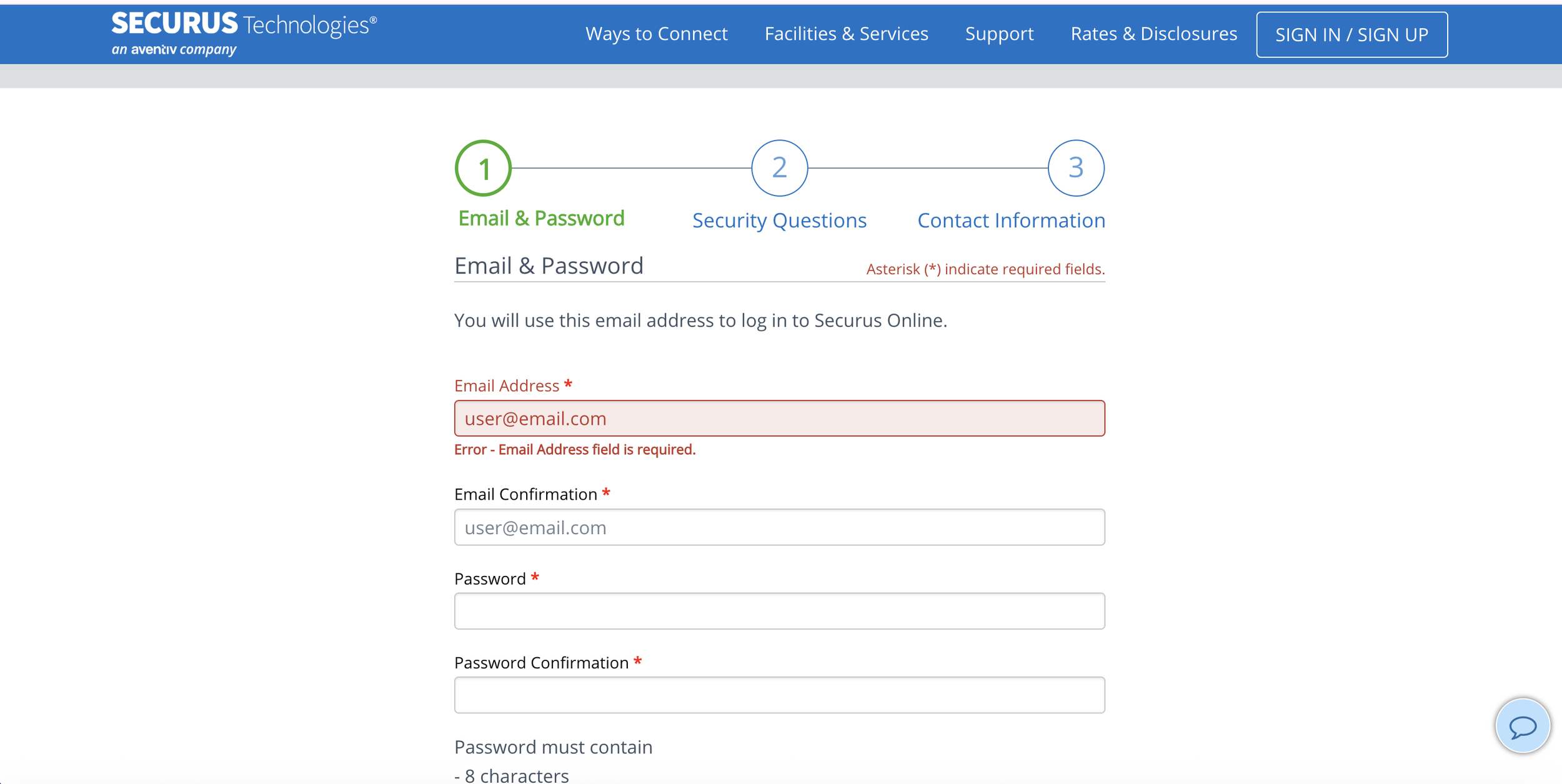
Step 2:
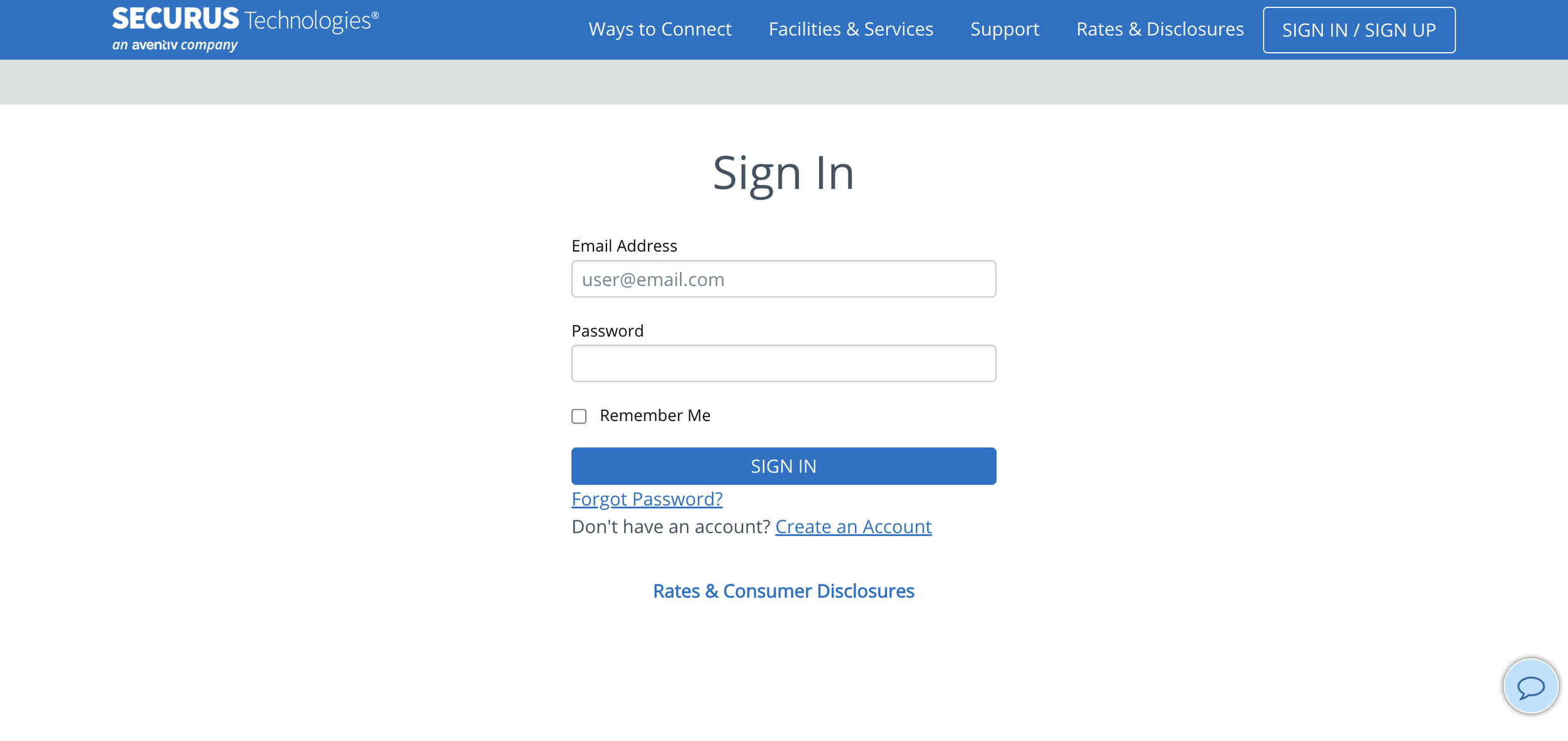
After verifying your account, navigate to https://securustech.online/#/login and log in.
Please note that you’ll need to have a debit or credit card on file with Securus for purchasing stamps and/or text “connects.”
It’s easier to purchase text connects via the mobile app, but you can do so via desktop as well.
Step 3:
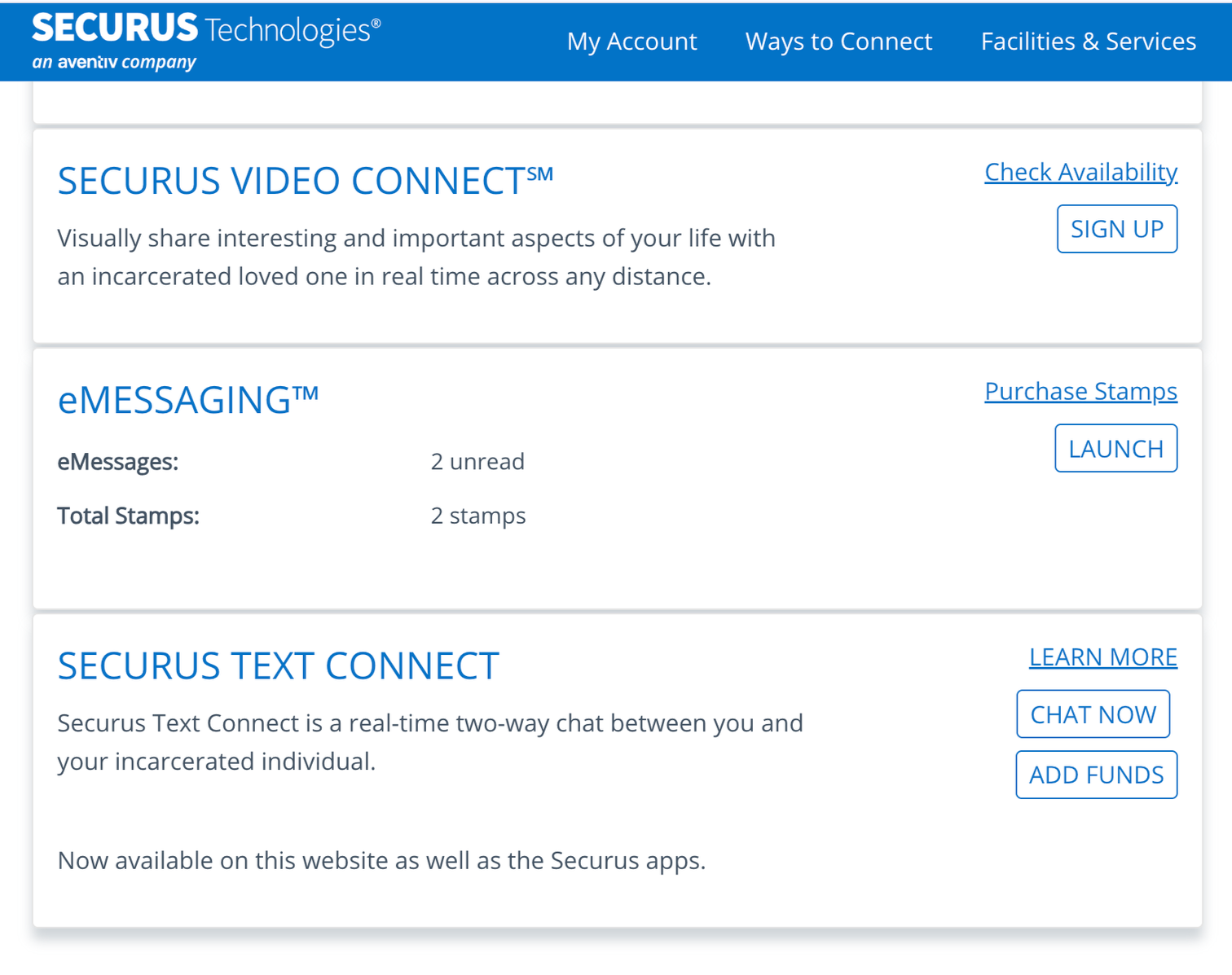
Your dashboard will show eMessaging, which is for emails, and it will show Securus Text Connect, which is for text messaging.
It’s easier, and recommended, to text our students via the phone app rather than desktop.
For this step, select eMessaging.
Step 4:
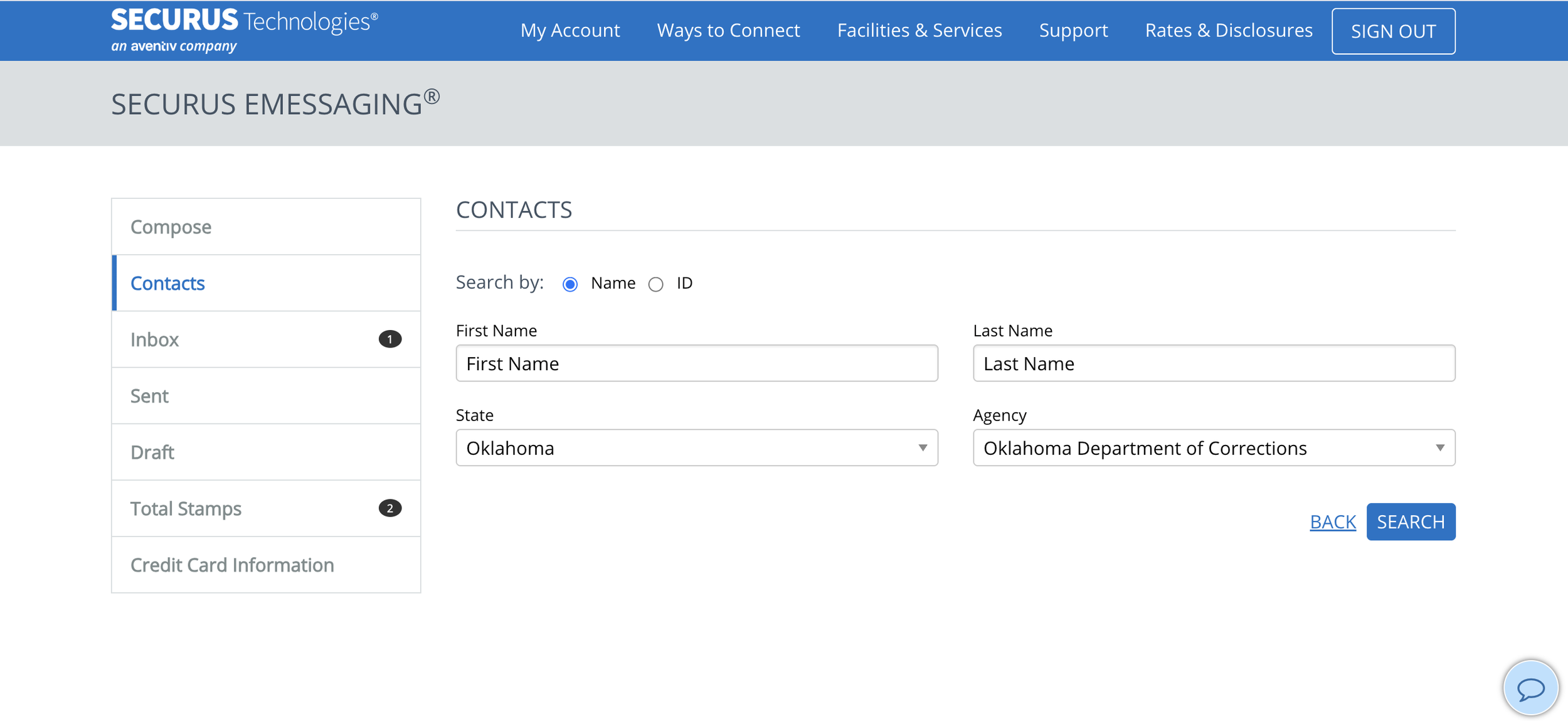
Click Contacts and type in a student’s first and last name, then toggle to Oklahoma and Oklahoma Departments of Corrections.
Click Search and select the student.
You may also search by DOC#.
A list of student names and DOC numbers will be made available to volunteers who have received their DOC training.
Step 5:
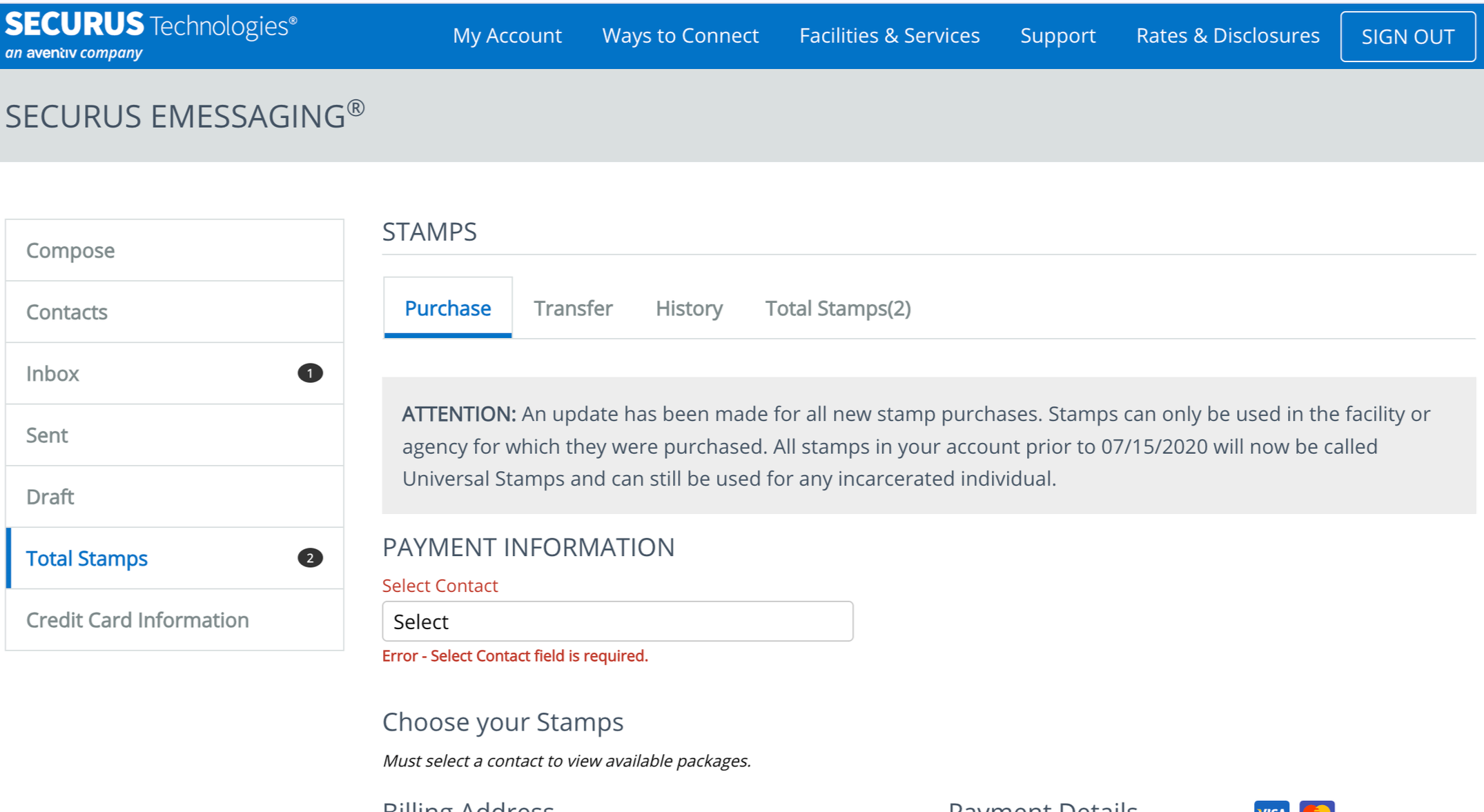
Choose Total Stamps to purchase stamps, which will allow you to send emails to incarcerated individuals.
You will need to select a student name under Select Contact. You may choose any student name—it doesn’t matter.
Purchase your stamps to email students.
Instructions: Mobile App
Step 1:
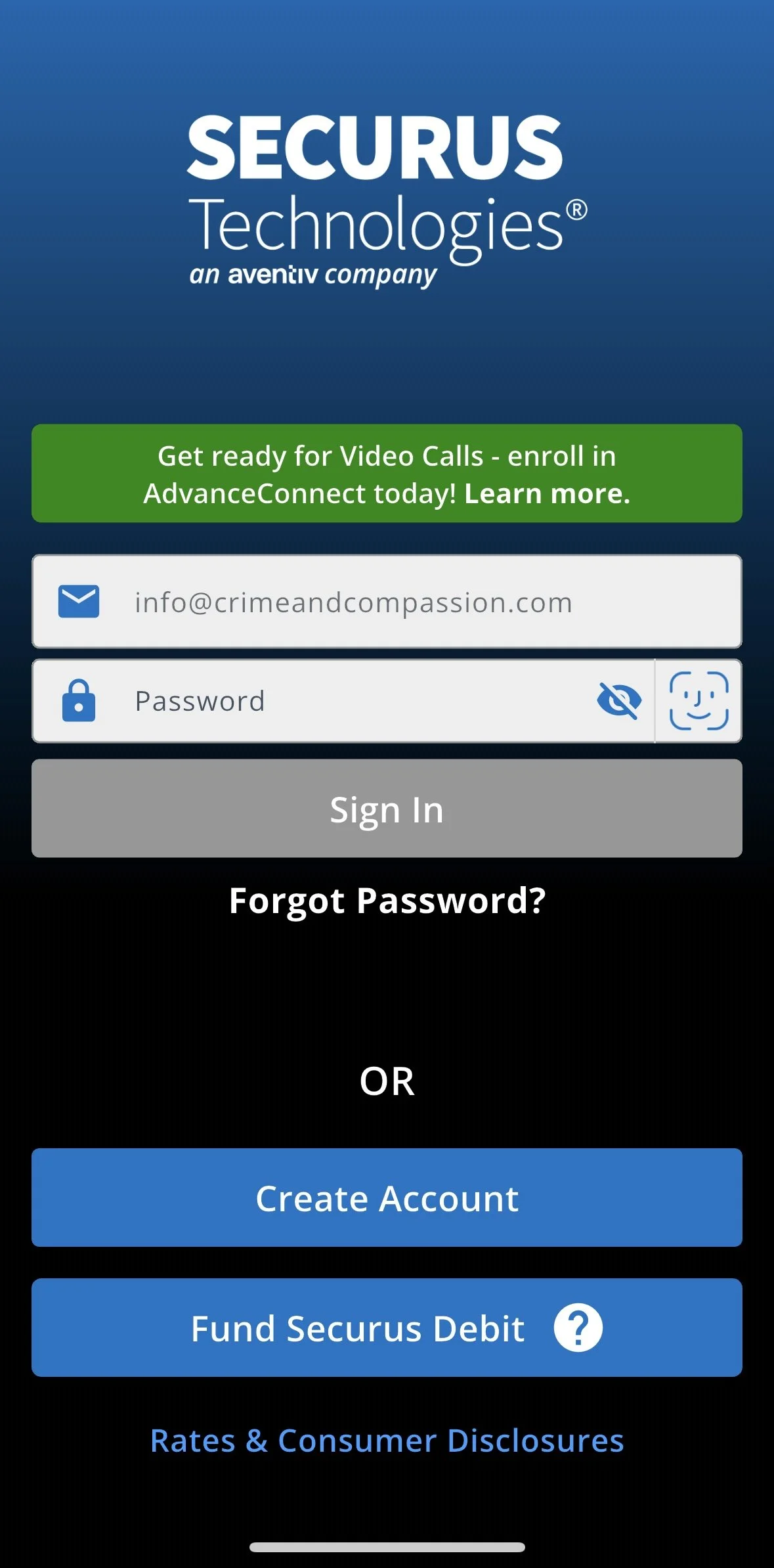
Download the Securus app for your phone and log in.
Step 2:
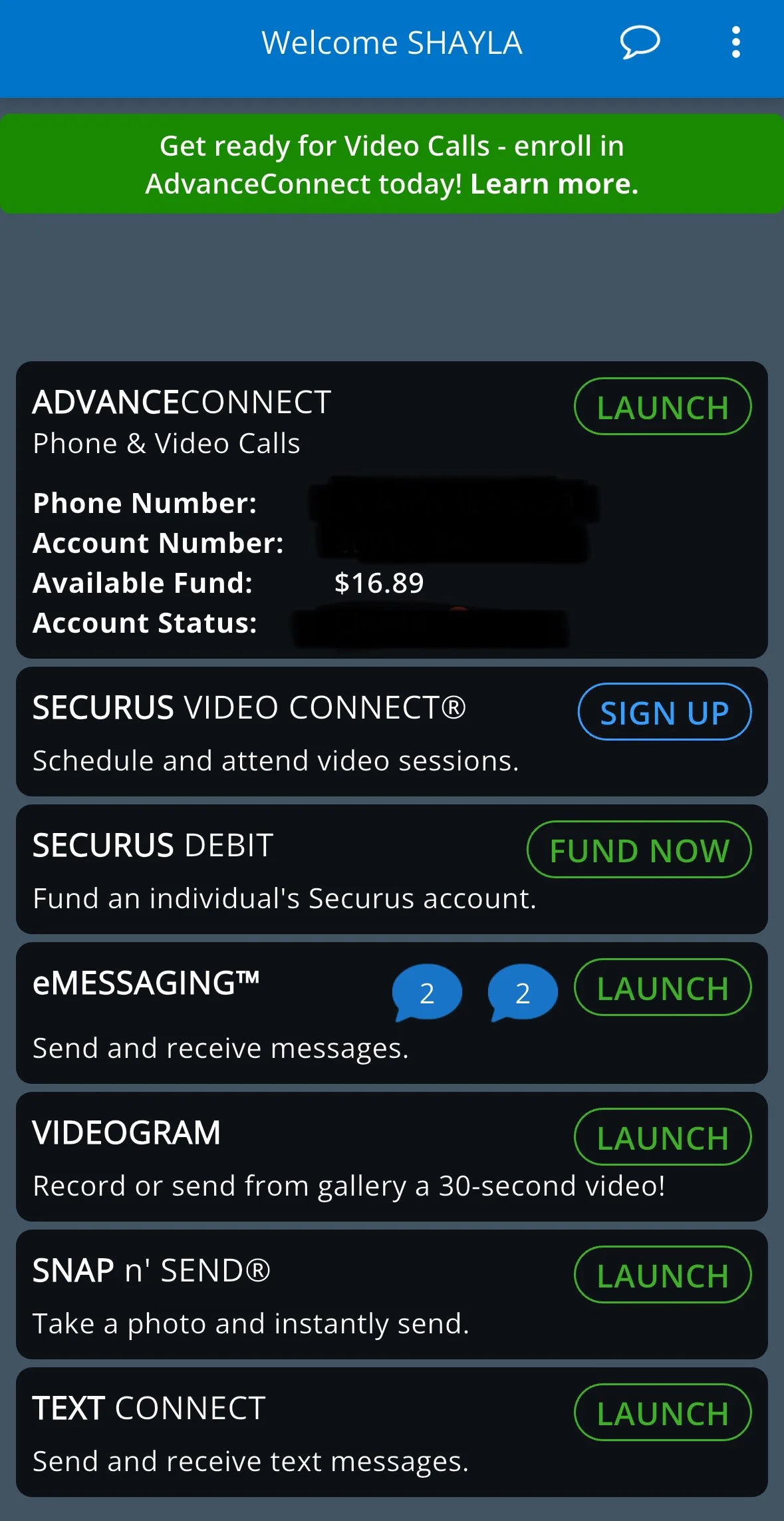
Navigate to Text Connect at the bottom to start sending text messages.
Step 3:
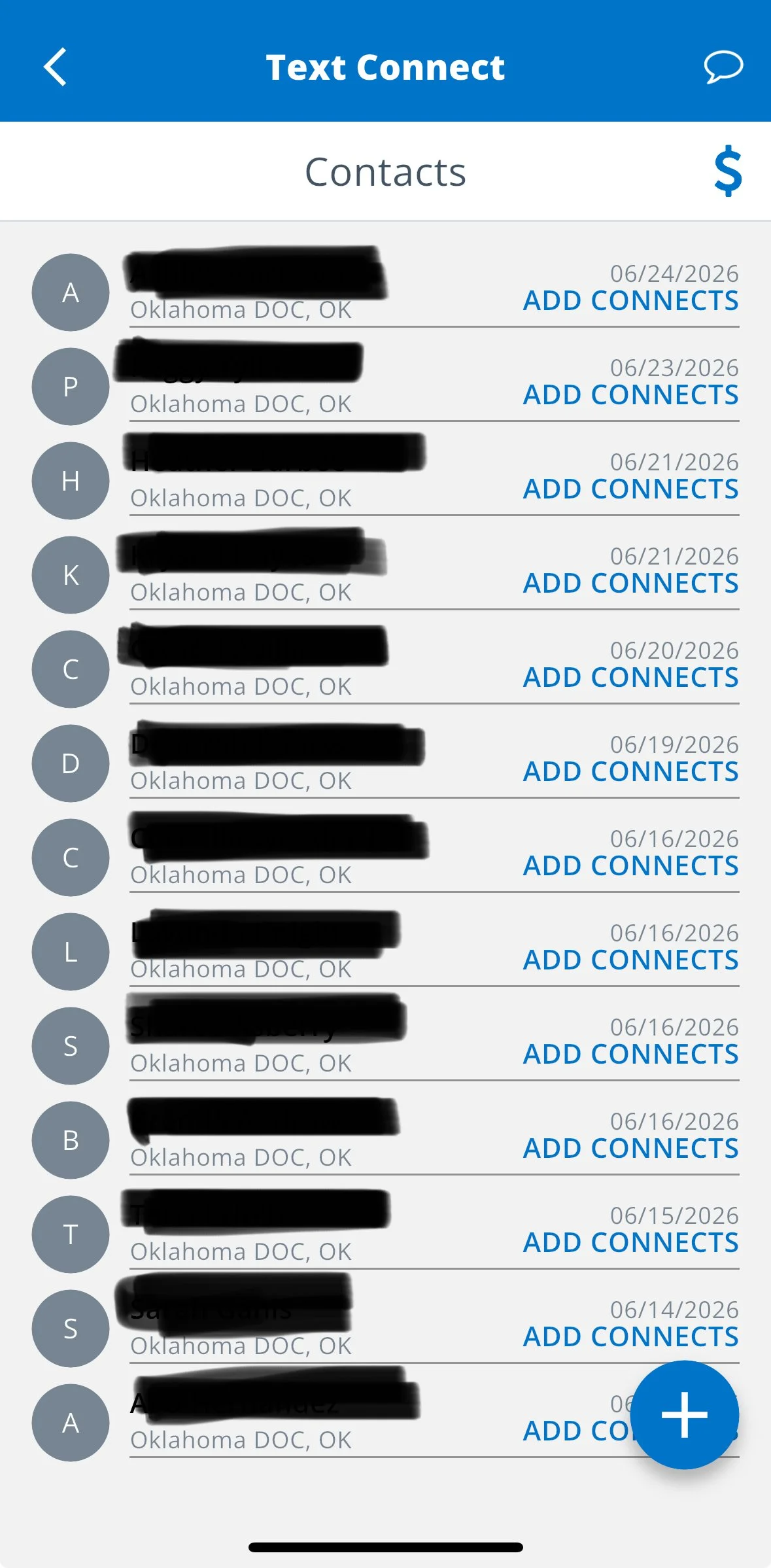
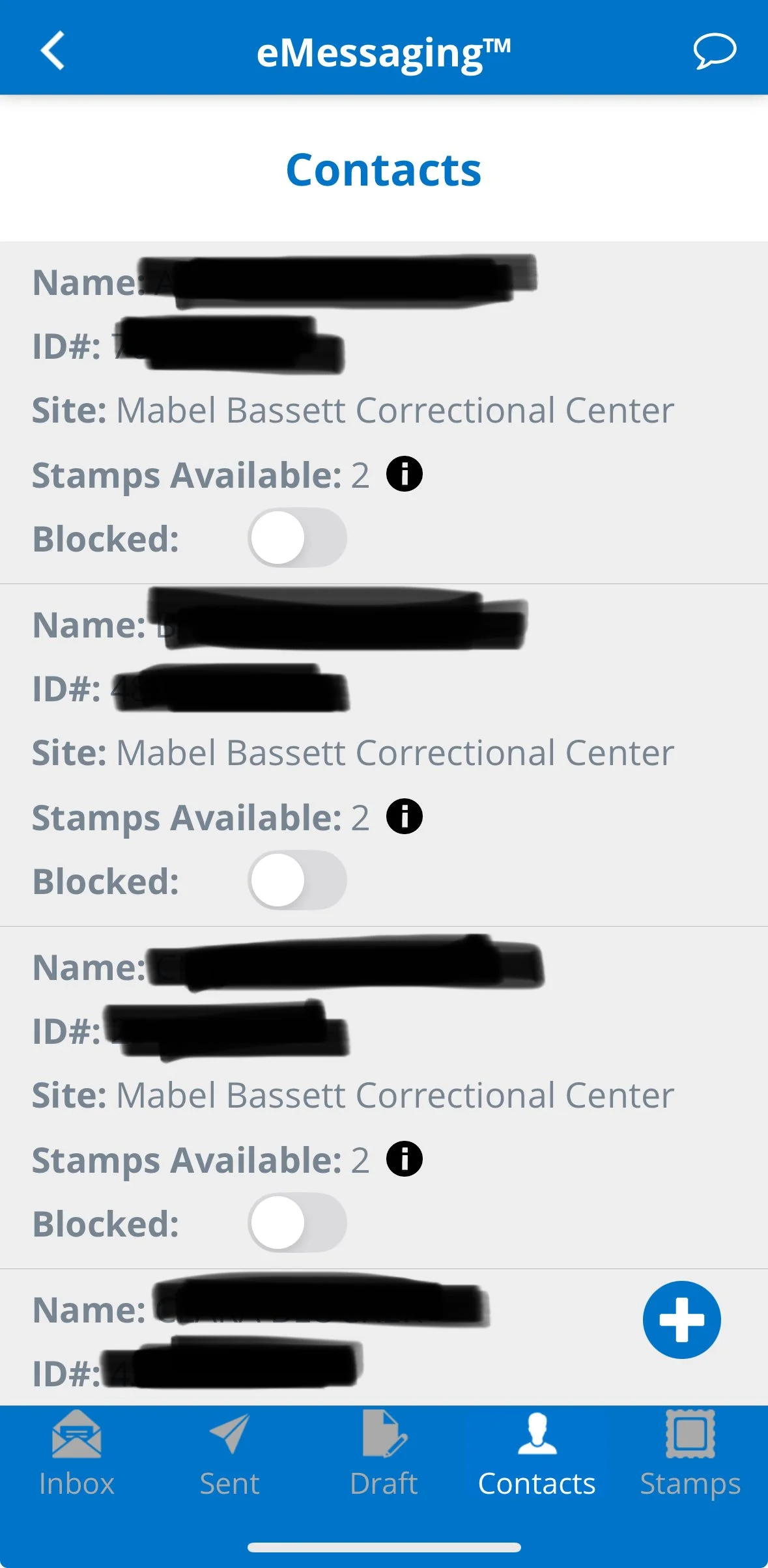
Select Contacts and hit the blue plus ( + ) button in the bottom right corner to add our students to your text message contacts.
Step 4:
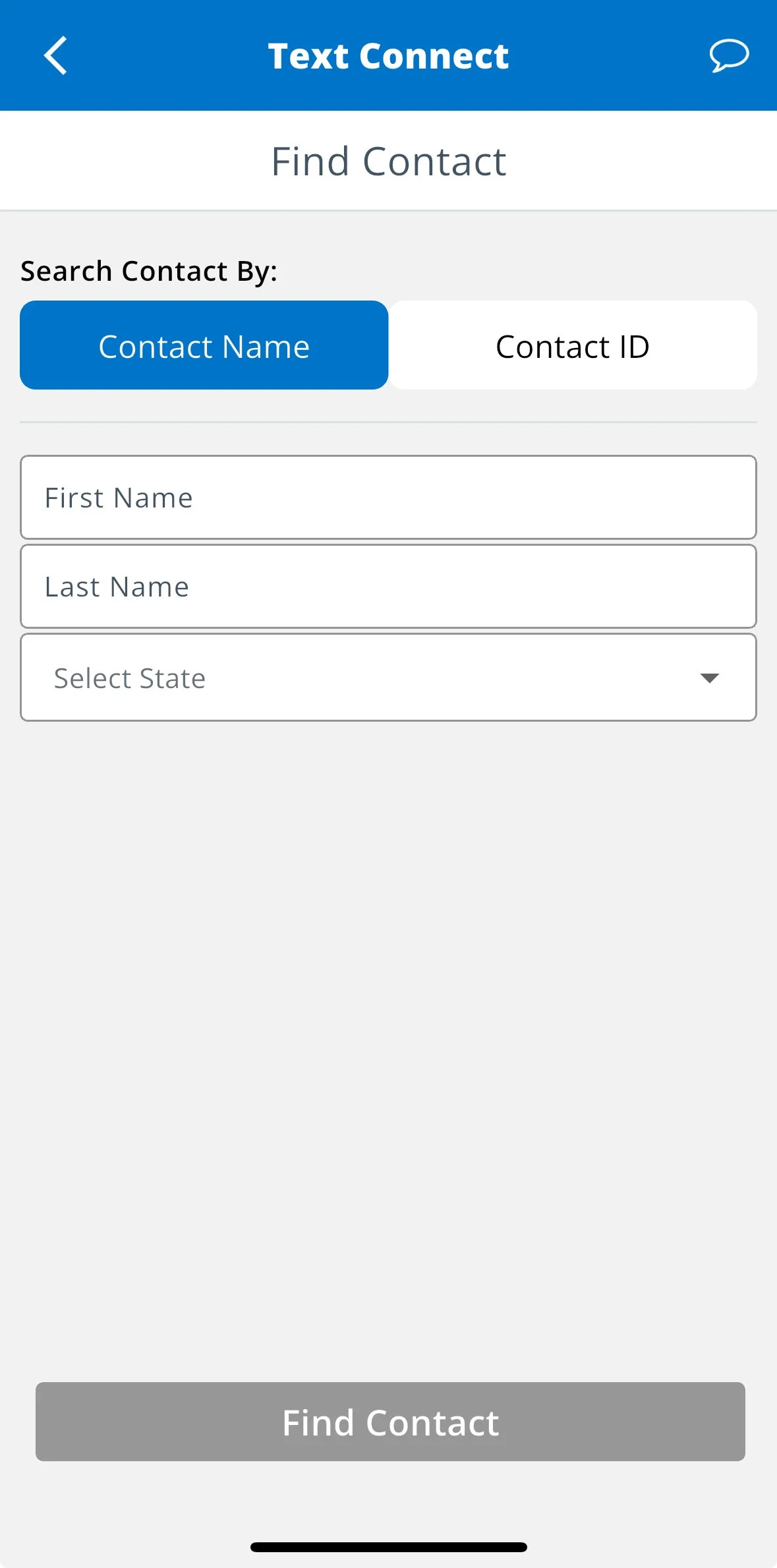
Type in a student’s first and last name, then toggle to Oklahoma and Oklahoma Departments of Corrections.
Click Find Contact and select the student.
You may also search by DOC#.